How to add your business to ChatGPT
Sign in to ChatGPT, select Explore then Business in the sidebar, search for your shop and claim it with a code sent to your business phone or a TXT record on your website domain. Then pass the Persona identity check and fill in your profile; shops on STACKS also connect a feed and invite STACKS.
By JJ Brown, founder of STACKS. Updated 2026-11-14.
What ChatGPT Business Hub is
Business Hub is the part of ChatGPT where a business claims its profile, keeps its details up to date, shares product information and sees how people engage with it. It is not the paid ChatGPT Business plan for teams. OpenAI's setup guide says you do not need an Ads account or a ChatGPT Enterprise agreement to claim an eligible business.
You can claim a business if you own it or are authorized to represent it. Availability depends on the business's location and type.
Steps 1 to 6 work for any business and end with a claimed, verified profile. The second part is for shops on STACKS: we add your DNS record, give you a feed to connect, and help manage the profile.
What to have ready
- Your own ChatGPT account. The owner, or someone authorized to represent the shop, does the claim.
- The business phone, in reach. If you verify by phone, the code goes to the number on the listing.
- Access to your domain's DNS settings, or someone who can add a record for you, if you verify by website domain.
- A government-issued ID and a phone with a camera for the identity check.
- Your business records: legal name, any trading name, business type, a physical address that is not a P.O. box, and your registration or tax number. OpenAI says these should match your official business records.
Step 1: Open Business Hub and find your shop
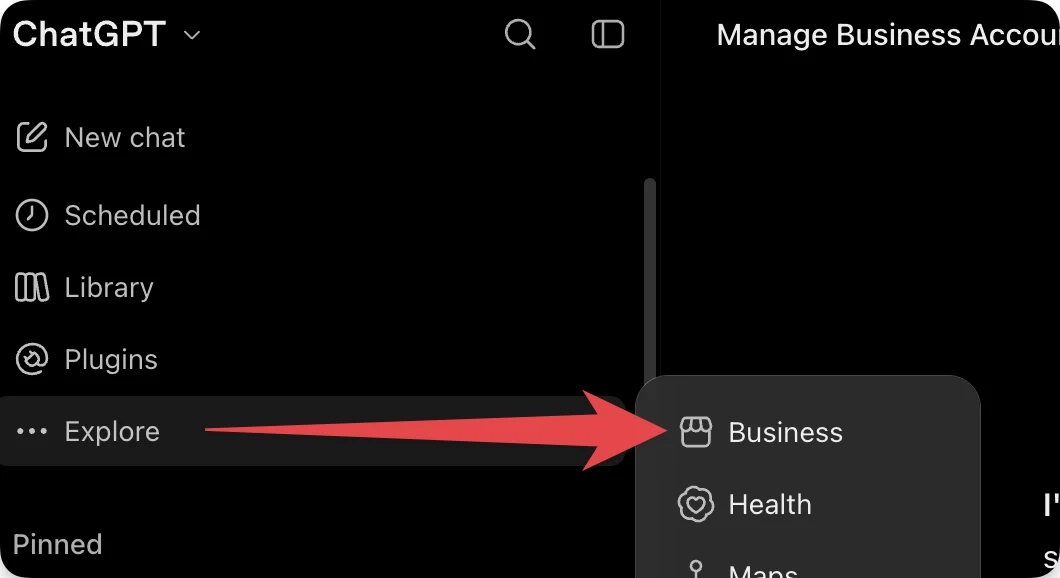
- Sign in to ChatGPT. In the sidebar, select Explore, then Business. You can also go straight to chatgpt.com/business-hub.
- Search for your business by name.
- Select the listing that matches your shop and confirm the ChatGPT account you will use to manage it.
If your shop does not come up, you may see an option to add it. If you do not, message us on WhatsApp.
If you see Contact support, the listing is locked. Select it to ask OpenAI for access. If the business is already claimed by someone else, open its profile, select the more options menu, then Dispute ownership.
Step 2: Verify your claim
ChatGPT shows the verification methods available for your listing. Use one of them.
| Method | What you do | Fits |
|---|---|---|
| Business phone | Choose a text message (SMS) or an automated call, select Get code, and enter the code sent to the number shown. | A repair shop with a storefront and a listed phone number. |
| Business email | Select Get code and enter the code sent to the email address associated with your business. | Any shop whose listed email you can open. |
| Website domain | Add the TXT record ChatGPT shows to your domain's DNS settings, then select Verify domain. | An online store, or any shop with its own domain. |
| Shopify store | Select Connect Shopify and log in to the store. | Stores that run on Shopify. |
Verifying by website domain
- Select Website domain. ChatGPT shows a TXT record with three parts: the type, the name or host, and the value.
- Add that record in your domain's DNS settings, copying all three parts exactly. If someone else manages your domain, ask them to add it.
- Go back to ChatGPT and select Verify domain, then follow any remaining prompts. DNS changes can take time to appear, so if it does not verify on the first try, wait and try again.
On a STACKS site, we add the record for you.
When asked for your business name, enter your legal business name, not a trading name or DBA.
Step 3: Wait for claim approval
OpenAI reviews your claim and emails you its decision or a request for more information. It does not give a time: its guide says review time varies. Wait for the review to finish before trying again.
Step 4: Verify your identity with Persona
Claiming is not the last check. OpenAI uses a company called Persona to confirm who you are. Until Persona is approved you cannot publish changes to your business information, connect a feed or view insights. The blue check on a profile comes from this step, not from the claim.
- Open the Business tab and select your profile.
- In your business overview, find Complete verification with Persona and select Verify. During a new claim the buttons read Verify with Persona, then Continue to Persona.
- Follow Persona's instructions. Expect to show a government-issued ID using your phone's camera and to enter your business details.
- Wait for OpenAI's email with its decision.
When asked for your business name, enter your legal business name, not a trading name or DBA.
Careful with new profiles: if you are creating a profile that did not exist before, OpenAI's approval of your Persona check publishes it automatically. There is no separate publish step, so finish only when you are ready.
If the check fails or expires, follow the instructions in the email. If Try again is available, select it and submit corrected information.
Step 5: Fill in your business information
Once the claim and Persona are both approved, open your profile in Business and update:
- Your website
- Your business description
- Your product or service category
- Your logo, and a cover photo if you want one
- Your delivery policy and return policy
OpenAI reviews and publishes changes, and they can take time to show up in a listing or an answer. ChatGPT may also use other sources when it answers questions about your shop, so keep your website and your other listings saying the same thing.
Step 6: Check your insights
Open your business in Business Hub and select Insights. It shows activity for the past 28 days:
- Mentions. For a local business, a mention counts when ChatGPT shows a result for that location. For an online business, it counts when ChatGPT references the website. The brand name alone does not count.
- Website clicks. How often people click through to your site.
- Discovery topics. Common themes in the answers that mentioned your business. You do not see anyone's individual questions.
A blank number does not have to mean zero. OpenAI says it can mean activity has not reached the reporting threshold or data is still being collected.
If you get stuck with OpenAI
A locked listing, a failed Persona check or a claim that stays pending is OpenAI's to fix. Contact OpenAI Support with the step you were on, the error message and a screenshot with private details removed.
That is the whole setup for any business: your profile is claimed and verified.
For STACKS shops: DNS, your feed and sharing access
This part needs a Stack. To put your repairs or your devices into ChatGPT you need a feed, and the feed comes from your STACKS site: the Repair Stack for a repair feed, or the Ecom Stack for an Ecom feed. See pricing.
Verifying by website domain on a STACKS site
Your DNS is shared with STACKS, so you do not need to log in to a domain registrar. We add the record for you.
- In step 2, select Website domain. You will see a TXT record with three parts: the type, the name or host, and the value.
- Copy all three exactly and send them to STACKS on WhatsApp or at openai@stacks.tech. A screenshot plus the pasted value is best, because the value is long and easy to mistype.
- We add the record and reply to tell you it is in place.
- Go back to ChatGPT and select Verify domain, then follow any remaining prompts. DNS changes can take time to appear, so if it does not verify on the first try, wait and try again.
Connect your STACKS feed
A feed gives ChatGPT structured details straight from your STACKS site. Repair and Ecom are separate feeds, and each one comes only with its own Stack.
- Repair feed: for shops on the Repair Stack. It lists every repair you have a set price for, like an iPhone 15 screen repair for $129, and links each one to that repair's page on your website, where customers book it.
- Ecom feed: for shops on the Ecom Stack. It holds the devices you list for sale. More on ChatGPT shopping.
Repair shops: get your feed ready first
Your repair feed builds itself from the prices on your own repair website. It exists once both of these are true:
- Your shop is in the US and your prices are in US dollars.
- At least one repair has a set price.
Your website does not have to show your prices. If it hides them, message STACKS on WhatsApp and we switch your feed on. Your website keeps hiding them.
Only repairs with one set price go in. A repair left blank or at 0 (quote only, call for price) is left out, and so is a price range like 229-299. When you change a price, the feed picks it up within 15 minutes. There is nothing to upload again.
Your feed address is on your own repair website. It is always your domain followed by /api/feed/chatgpt.jsonl.gz, like this:
https://yourshop.com/api/feed/chatgpt.jsonl.gz
If that address says "not found", your shop is outside the US, has no repair with a set price yet, or hides its prices and has not asked STACKS to switch the feed on.
Online stores: your Ecom feed
Your Ecom feed builds itself from the devices you list for sale in the Ecom Stack. It is for stores in the US, and a device with no price is not offered. The address follows the same pattern on your store's own domain: your domain, then /api/feed/chatgpt.jsonl.gz.
Connect the feed in Business Hub
STACKS sends you your feed address. If you do not have yours, ask us on WhatsApp. Then:
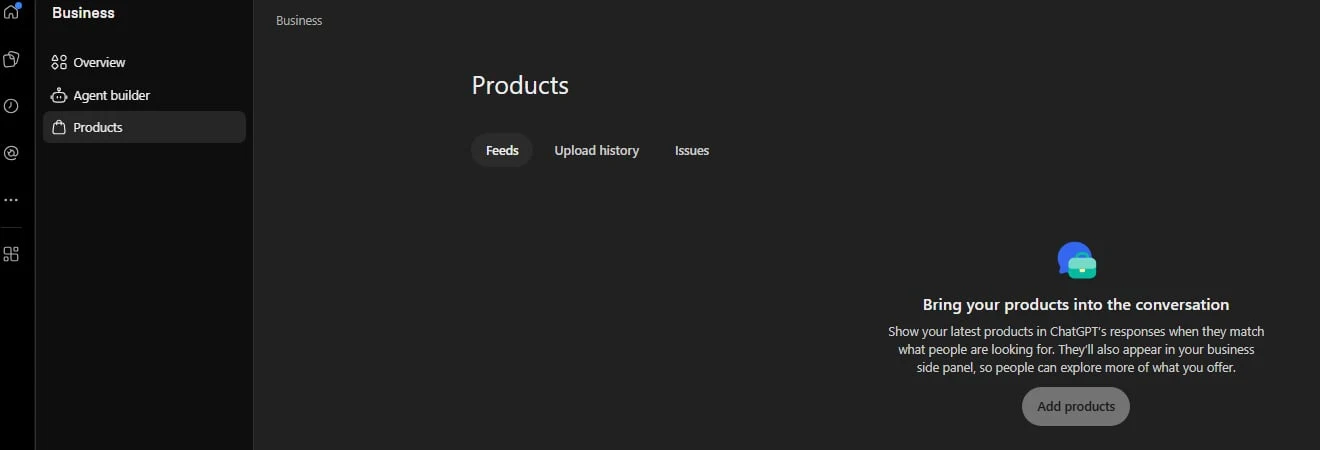
- Open your business in Business Hub and select Products in the left menu. If you have not finished the Persona check in step 4, you will be asked to verify your identity first.
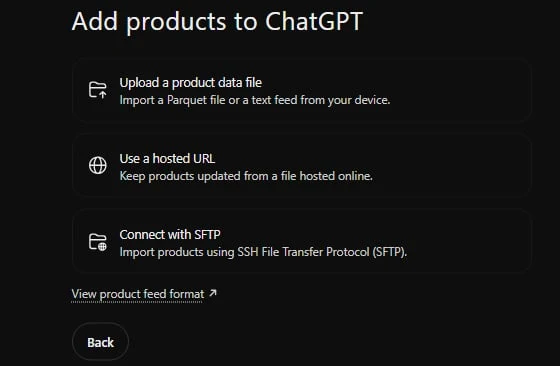
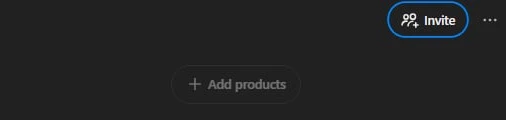
- Select Add products.
- On Add products to ChatGPT, the Product feed name is optional. Type a name if you want one, then select Next.
- Select Use a hosted URL and paste your STACKS feed address. Do not pick the file upload or SFTP options.
- If you are asked for the countries and currencies you sell in, choose them.
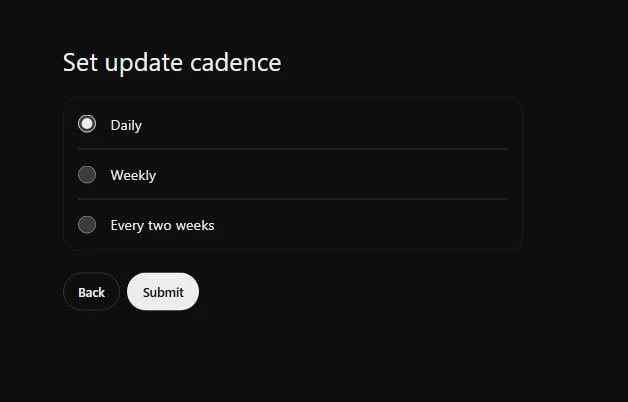
- On Set update cadence, choose Daily, then select Submit.
- Back on the Products screen, check the Issues tab. If it reports an error, send STACKS a screenshot or the exact error message, plus your site address, on WhatsApp.
OpenAI is plain about the limit here: connecting a feed does not guarantee that ChatGPT recommends your products.
Invite STACKS and your team
The admin who claimed the business can add teammates and give an agency access. Invite STACKS first, so we can help manage your profile and your feed, then add your own staff the same way.
- Open your business overview in Business Hub.
- Select Invite in the upper right corner of the screen.
- In the Invite business admins dialog, enter openai@stacks.tech to invite STACKS and send the invite.
- Tell us on WhatsApp that the invite is sent, so we can accept it.
- Repeat for each of your own team members. Each one accepts using their own ChatGPT account.
If you see "Unable to invite"
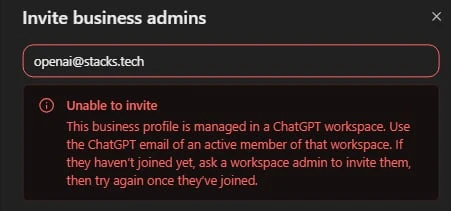
If you manage your listing from a ChatGPT workspace account, the invite will not go through right now (as of November 14, 2026). ChatGPT shows Unable to invite and says the business profile is managed in a ChatGPT workspace.
That does not stop your setup. Message STACKS on WhatsApp and we will set you up another way.
- Never share your login. OpenAI says to use each person's own ChatGPT account.
- Do not forward your personal claim invitation email to give someone access. Use Invite.
If you get stuck with STACKS
The DNS record, your feed address or a feed error is ours to fix. Message STACKS on WhatsApp or email openai@stacks.tech.
These steps follow OpenAI's own setup guide, Setting up your business on ChatGPT, as it read on November 14, 2026. Business Hub is new and the screens may change.
Questions shops ask about this
Is ChatGPT Business Hub the same as the ChatGPT Business plan?+
No. Business Hub is where you claim and manage your business profile in ChatGPT. The ChatGPT Business plan is a paid workspace for a team. OpenAI says you do not need an Ads account or a ChatGPT Enterprise agreement to claim an eligible business.
How do I verify my website domain?+
Select Website domain and ChatGPT shows a TXT record with a type, a name or host, and a value. That record goes into your domain's DNS settings. STACKS shops send the record to us, we add it and reply, then you select Verify domain.
Do I need a government ID?+
For the Persona identity check, yes, you may. OpenAI says you may need a government-issued ID, business registration information and proof that you are authorized to represent the business.
How long does approval take?+
OpenAI does not give a time. Its guide says review time varies, and that it emails its decision or a request for more information.
Will claiming my shop make ChatGPT recommend it more?+
Not guaranteed. OpenAI says claiming lets you manage the information you provide and does not guarantee increased visibility. Connecting a feed does not guarantee that ChatGPT recommends your products either.
What goes into a repair shop's ChatGPT feed?+
Every repair the shop has one set price for, each linked to that repair's page on the shop's own website, where customers book it. Repairs with no price, a price of 0 or a price range are left out.
Why does my repair feed address say not found?+
The repair feed exists when the shop is in the US with prices in US dollars and at least one repair has a set price. If your website hides prices, message STACKS on WhatsApp and we switch the feed on; your website can keep hiding them.
Can I add my staff or an agency?+
Yes. The admin who claimed the business can add teammates in Business Hub and grant an agency access. Each person uses their own ChatGPT account. STACKS shops invite STACKS the same way, so we can help manage the profile and feed.
Why does ChatGPT say Unable to invite?+
As of November 14, 2026, a business profile managed in a ChatGPT workspace can only invite active members of that workspace, so inviting someone outside it fails with Unable to invite. STACKS shops who see this message us on WhatsApp and we set them up another way.
Which update cadence should I choose for my feed?+
Daily. On the Set update cadence screen the choices are Daily, Weekly and Every two weeks. STACKS shops choose Daily so ChatGPT reads the feed as often as that screen allows.
Do I need a STACKS plan for this?+
For the feed, yes. You need the Repair Stack for a repair feed or the Ecom Stack for an Ecom feed, because the feed is built from your STACKS site. Claiming and verifying the business profile itself is open to anyone who owns or is authorized to represent an eligible business.
Want a feed to connect?
The Repair Stack and the Ecom Stack each come with their own ChatGPT feed. Book a call and we will walk through it.
Book a Demo